In this guide 9 sections
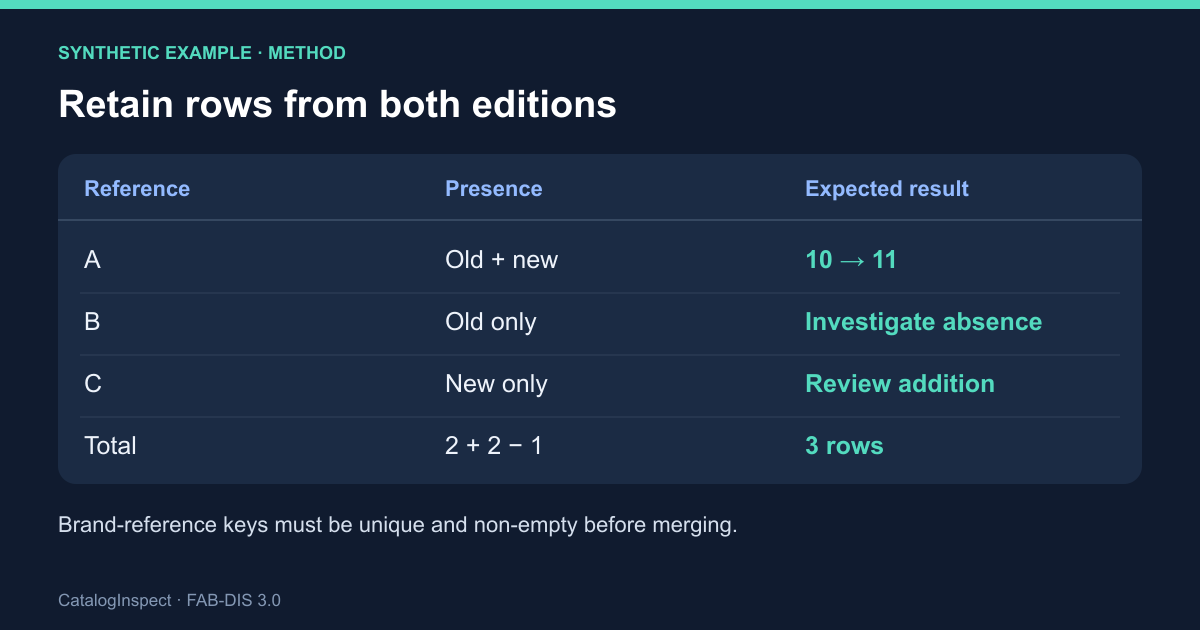
To compare two Excel sheets for price differences, match the rows on a product key (brand and product code), never on row position, and keep every key that appears in either sheet. Each key then lands in one of three states, matched, missing from the new list or added in the new list, and matched rows get a price difference in euros and in percent.
This is what database people call a full outer join. You can build it in any spreadsheet, with formulas or with a query tool, as long as you check the keys first and count the rows at the end. When both files are FAB-DIS 3.0 editions from the same manufacturer, a supplier catalogue comparison applies the same three states to every product code and field, not only to the price. The method below uses a small fictitious price list from one manufacturer so every result can be checked by hand.
How to compare two Excel sheets for differences by product code
Comparing cell by cell only works when both sheets have exactly the same rows in exactly the same order. A new price list rarely does: items are added, others disappear, and the sort order changes. One inserted row shifts everything below it, and every following cell looks “different”.
Matching on a key avoids that. The method has five steps:
- Prepare both sheets with the same columns:
Brand,CodeandPrice, with brand and code stored as text. - Check the keys: every brand and code pair is filled in and appears only once per sheet.
- Build one list of all keys from both sheets, then bring the old price and the new price beside each key.
- Assign a status:
matched,old_only(missing from the new list) ornew_only(added). If the new file covers only some ranges, first check the scope of a partial or full supplier catalogue: anold_onlyrow may simply be outside the delivery. - Calculate the difference in € and in % for matched rows, run the row-count checks, then weigh the changes with a supplier price increase analysis.
The key matters more than the formula. If one sheet keeps 0042 and the other has turned it into 42, the same product looks like one missing item and one added item. Fix that first with the rules for normalising product codes without losing leading zeros. The sample difference report between two editions shows the same states applied to a whole catalogue, with price, pack size and media changes side by side.
Prepare the old and new price lists
Put each edition on its own sheet and format it as a table. Name them OldList and NewList. The records below are synthetic:
| Sheet | Brand | Code | Price |
|---|---|---|---|
| OldList | DEMO | A100 | €10.00 |
| OldList | DEMO | A200 | €20.00 |
| OldList | DEMO | B300 | €8.50 |
| OldList | DEMO | 0042 | €4.00 |
| NewList | DEMO | A100 | €11.00 |
| NewList | DEMO | B300 | €8.50 |
| NewList | DEMO | 0042 | €4.20 |
| NewList | DEMO | C400 | €30.00 |
Read Brand and Code as text from the start; if a sheet comes from a CSV file, import the CSV with the right UTF-8 encoding, delimiter and quotes so the codes stay intact. If an automatic conversion has already changed a code, return to the original file rather than repairing the result. Read Price with the decimal convention of the source file: a price written 8,50 in a decimal-comma file is €8.50, not 850, and the method for converting decimal-comma supplier prices keeps that conversion testable. A blank, a zero or a text such as “on request” is not a price: set those rows aside as zero, missing or invalid supplier prices before you calculate any percentage.
Before you compare amounts, also check that both editions use the same currency, the same pricing unit and the same pack size. A price that doubles because the unit moved from 1 to 2 pieces is not a price increase.
Check that every key is complete and unique
A row needs a key that identifies it once. The W3C tabular data model describes a primary key as the cells whose values together uniquely identify a row, and treats two rows with the same primary key as a validation error. Apply the same rule to each sheet before joining:
- filter rows where
BrandorCodeis empty, blank or only spaces; - count how many times each brand and code pair appears, and list every pair that appears more than once.
If either check returns a row, stop and correct the source. Duplicate keys multiply results: two A100 rows in each sheet produce 2 × 2 = 4 matched pairs. Keeping the first row only hides the problem, because nothing tells you which of the two prices is the right one.
Join both sheets and keep rows from both sides
Now build the comparison table:
- Stack the keys. Copy the brand and code pairs from
OldList, then those fromNewList, into one column pair, and remove duplicates. In the example, this gives five keys: A100, A200, B300, 0042 and C400. - Bring in the old price. For each key, look up the price in
OldListby brand and code. Leave the cell empty when the key is absent. - Bring in the new price. Do the same with
NewList. - Assign the status.
old_onlywhen the new price cell is empty because the key is absent fromNewList;new_onlywhen the key is absent fromOldList; otherwisematched.
Base the status on the presence of the key, not on whether the price is filled in. A matched item can legitimately have a blank price in one edition, and it must stay matched with a separate price review.
If you use a query tool instead of formulas, the same result comes from joining the two tables on brand then code and keeping the unmatched rows of both tables. Bring the new table’s brand and code into the result as well as its price: without them, an item found only in the new list has an empty key in the output.
Why a lookup alone misses new items
The usual shortcut is to start from the old sheet and look up each old code in the new sheet. That finds price changes and items missing from the new list, but an item that exists only in the new list never appears, because nothing in the old sheet points to it. Starting from the new sheet has the opposite blind spot. The combined list of keys in step 1 is what makes the comparison complete.
Flag added, missing and changed prices
With the five keys of the example, the comparison table reads:
| Brand | Code | Old price | New price | Status | Difference (€) | Difference (%) |
|---|---|---|---|---|---|---|
| DEMO | A100 | €10.00 | €11.00 | matched | +€1.00 | +10.0% |
| DEMO | A200 | €20.00 | old_only | |||
| DEMO | B300 | €8.50 | €8.50 | matched | €0.00 | 0.0% |
| DEMO | 0042 | €4.00 | €4.20 | matched | +€0.20 | +5.0% |
| DEMO | C400 | €30.00 | new_only |
Sort or filter on the status to review each group separately: changed prices, unchanged prices, items missing from the new list and added items.
Calculate the price difference in euros and percent
For matched rows, the difference in euros is new price minus old price. The percentage is (new − old) ÷ old × 100: for A100, (11.00 − 10.00) ÷ 10.00 × 100 = +10.0%.
Leave the percentage empty when the old price is blank or zero, because a division by zero has no meaning. Treat those rows as a separate review, as explained for zero, missing or invalid prices in a supplier price list. Row-level percentages also say nothing about your spend: to measure what the new list costs you, weight each change by your purchase volumes over a fixed basket of quantities.
Check the result before you act on it
Three counts must hold, and they catch most join errors:
- old rows = matched +
old_only(4 = 3 + 1); - new rows = matched +
new_only(4 = 3 + 1); - comparison rows = matched +
old_only+new_only(5 = 3 + 1 + 1).
Then test the method on copies of the sheets with deliberate errors. The results below are the expected behaviour of the method, not a test run reported here:
| Synthetic change | Expected result |
|---|---|
| Two A100 rows in each sheet | Duplicate-key alert; without the check, 2 × 2 = 4 A100 pairs |
| Empty, blank or space-only brand or code | Incomplete-key alert |
| A100 has a blank new price | A100 stays matched; review its price separately |
| A100 has a new price of 0 | Zero kept; confirm its business meaning separately |
Code 0042 stored as text on both sides | 0042 stays text and matches exactly |
For C400, check that the brand and code in the result are DEMO and C400, even though the old side is empty.
What the comparison does not tell you
The three states describe presence in the two sheets, nothing more. old_only does not prove that a product is discontinued: the new file may cover only part of the range. Check the scope of a partial or complete supplier catalogue and the manufacturer’s information first. In a FAB-DIS 3.0 file, the French product data exchange format used between manufacturers and distributors, discontinued product codes belong in the ARRET block rather than in COMMERCE, and a replacement code is declared in COMMERCE.
Keep the original files unchanged and note how each sheet was extracted from them. The join does not align currency, pricing units or effective dates; check those before reading a difference as a real price change. For two editions from the same manufacturer, the supplier catalogue comparison page explains how CatalogInspect sets out added, missing and changed codes in one review.
Frequently asked questions
How do I compare two Excel sheets for differences?
Match the rows on a key such as brand and product code instead of row position. Build one list of every key found in either sheet, bring the old and new values beside each key, then flag each row as matched, missing from the new sheet or added.
What is a full outer join in Excel?
It is a comparison that keeps every key from both tables: keys found in both are matched, and keys found in only one table are kept with an empty value on the other side. You can build it with a combined key list and two lookups, or with a query tool that joins tables.
How do I find new and missing items between two price lists?
After the join, an item whose key is absent from the old list is new, and an item whose key is absent from the new list is missing. A missing item is not automatically discontinued, so check the file scope and the manufacturer information before acting.
How do I calculate the percentage price difference?
Subtract the old price from the new price, divide by the old price and multiply by 100. A change from 10.00 to 11.00 euros is a 10% increase; leave the percentage empty when the old price is zero or blank.
Why do I get more rows than expected after joining two sheets?
A key that appears more than once in a sheet multiplies the matches: two identical keys on each side produce four pairs. Count each brand and code pair before joining and correct duplicates in the source.
Official sources & scope
This guide describes a working method. The examples are fictional; the official documentation remains the reference for the format rules. CatalogInspect is an independent service.